Ready to dive into the world of managing your kiddo’s profile? Let’s make it a breeze! Whether you’re just getting started or updating a few details, we’ve got you covered with a playful, easy to follow process.
This tutorial walks you through adding your child’s profile in the app, from choosing an avatar to saving their details, and shows you how to edit the profile later as your child grows.
Why Your Child’s Profile Matters

We use your child’s profile in the autism app to create a unique, personalized experience tailored to their personality, communication style, and developmental needs. Each profile helps us better support your child’s growth and make their learning journey more magical.
Step 1: Choose a Fun Monster Avatar
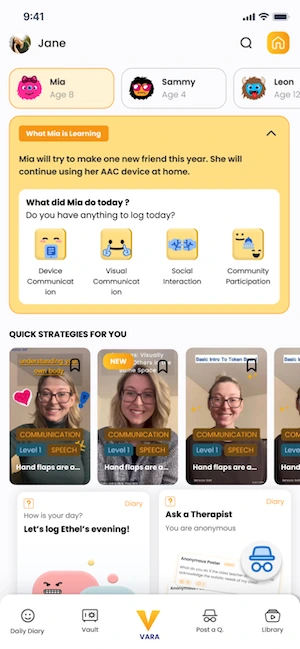
Let’s start by giving your little one their very own monster avatar! It’s a fun and friendly way to represent them in the app and helps them feel connected to their journey. If you want to customize it further, see our guide to how to use the Avatar Builder.
Step 2: Fill in the Details
Next up, let’s get to know your child a little better. You’ll be asked to enter:
- Their name
- Age
- Communication level (for example, do they talk a lot, use a few words, or communicate in other ways such as gestures, signs or AAC?)
The more we know, the better we can tailor their experience to fit just right.
Step 3: Watch the Magic Happen
With just a few simple details, we’ll create a personalized adventure that feels magical and meaningful for both you and your child. From activities to progress tracking, everything is built with your kiddo in mind. Once the profile is set up, you can log your child’s day in the Daily Diary and watch their patterns take shape over time.
Don’t Forget to Hit Save!
Always tap Save so you don’t lose any of your progress. It’s a small step that makes a big difference.
Need to Make a Change?
Want to update something later? No problem! Just tap the pencil icon on the right-hand side of the profile. It’s as easy as pie.
Tips for Setting Up Your Child’s Profile
- Choose the communication level that reflects how your child communicates day to day, not how you hope they will. There’s no wrong answer, and every way of communicating counts.
- Let your child help pick their monster avatar if they’d enjoy it. It can make the app feel like theirs.
- Check the profile every few months and use the pencil icon to update their age or communication level as things change.
- If you have more than one child, set up a separate profile for each so their experience stays tailored to them.
Frequently Asked Questions
Can I change my child’s details after saving?
Yes. Tap the pencil icon on the right-hand side of the profile to edit it, then tap Save.
Why does the app ask about communication level?
Your child’s communication style helps the app tailor their experience, so the activities and support fit how your child communicates now.
Your Child’s Adventure Awaits
Now that you’re all set up, go ahead and explore, customize and have fun managing your kiddo’s profile. A world of learning, growth, and imagination is just a tap away. New here? Learn more about VARA by Autism360, the app that puts a therapist’s playbook in your pocket.

Learn More About :
👶 Manage Children
A quick guide on how to add, edit, or manage your child’s profile in the Autism360 app.
🔍 Search Function
Learn how to efficiently search for content, resources, and features within the Autism360 app.

Rachael Young is a behavior analyst with Autism 360, specializing in tailored, evidence-based support that improves daily life for children and their families. She is an Adjunct Instructor at Arizona State University, where she trains the next generation of behavior analysts, and is completing a PsyD in Clinical Psychology to deepen her clinical practice. Rachael is proud to identify as neurodivergent, and that lived perspective shapes the empathy and practicality of her work. She writes about ABA, autism in girls and women, co-occurring conditions and the teen years.